Tutorials & Guides
Learn how to maximize your trading performance with our comprehensive guides and video tutorials.
Getting Started
Learn how to access DK Algo, add the strategy to your TradingView chart, and understand the key trading signals.
Configuration
Master the strategy settings including signal factors, safety orders, dynamic exits, and risk management for optimal performance.
Automation
Connect DK Algo to Finandy so TradingView strategy orders can execute directly through your connected wallet or exchange account.
Getting Started
Acquiring and Accessing the Indicator
If You Purchased the Indicator
After completing your purchase, you'll be redirected to a private access page where you'll need to enter your TradingView username. This ensures you're added to our exclusive, invite-only indicator list on TradingView.
If You're Redeeming a Free Trial
After submitting your TradingView username on our free trial page, you'll receive immediate access to the indicator. The trial version provides the same features as the full version but is limited to 3 days of use.
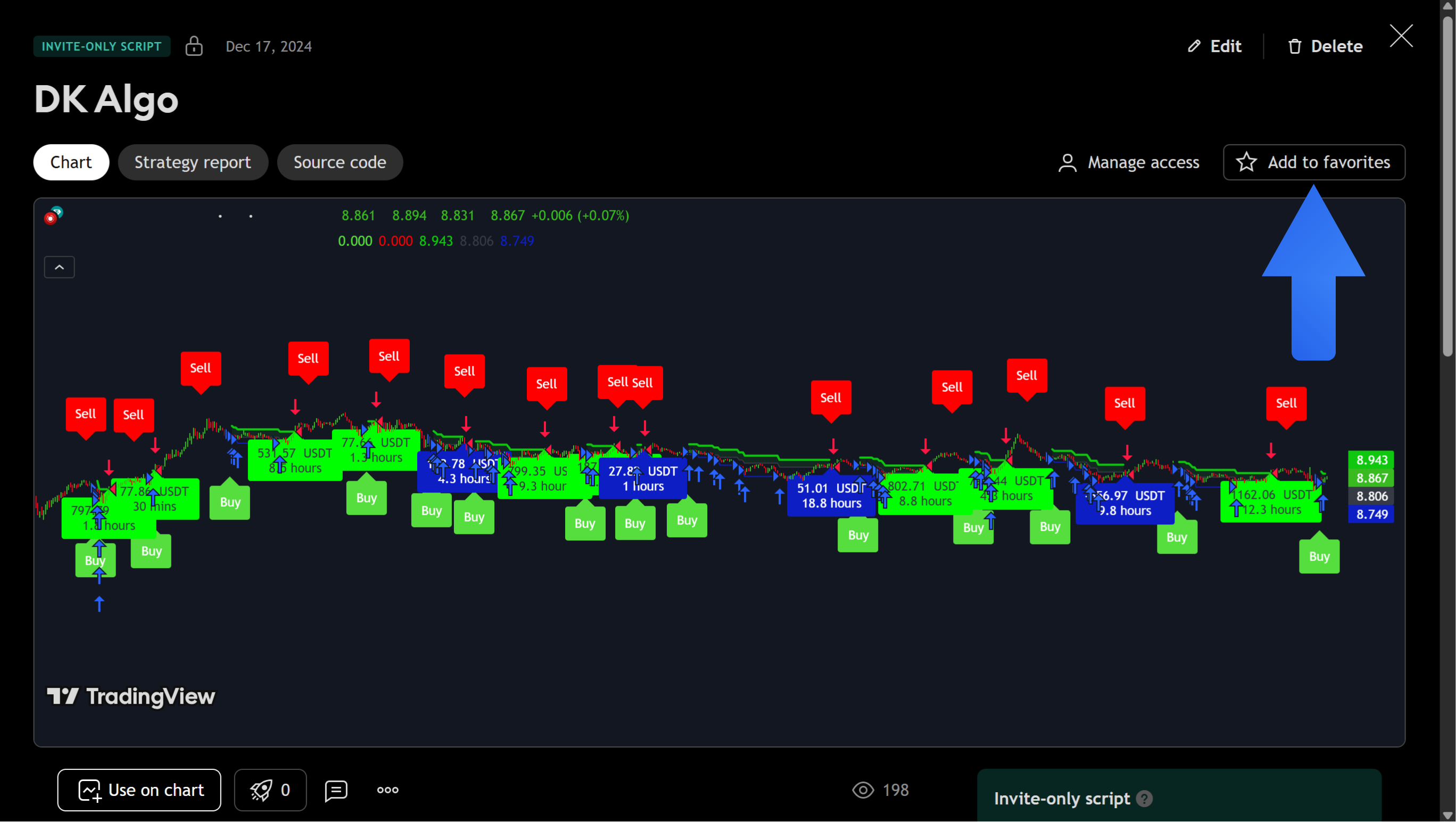
In both cases, follow the provided link directly to TradingView and click the Favourite icon next to the DK Algo indicator name for easier access in the future.
Adding to Your Chart
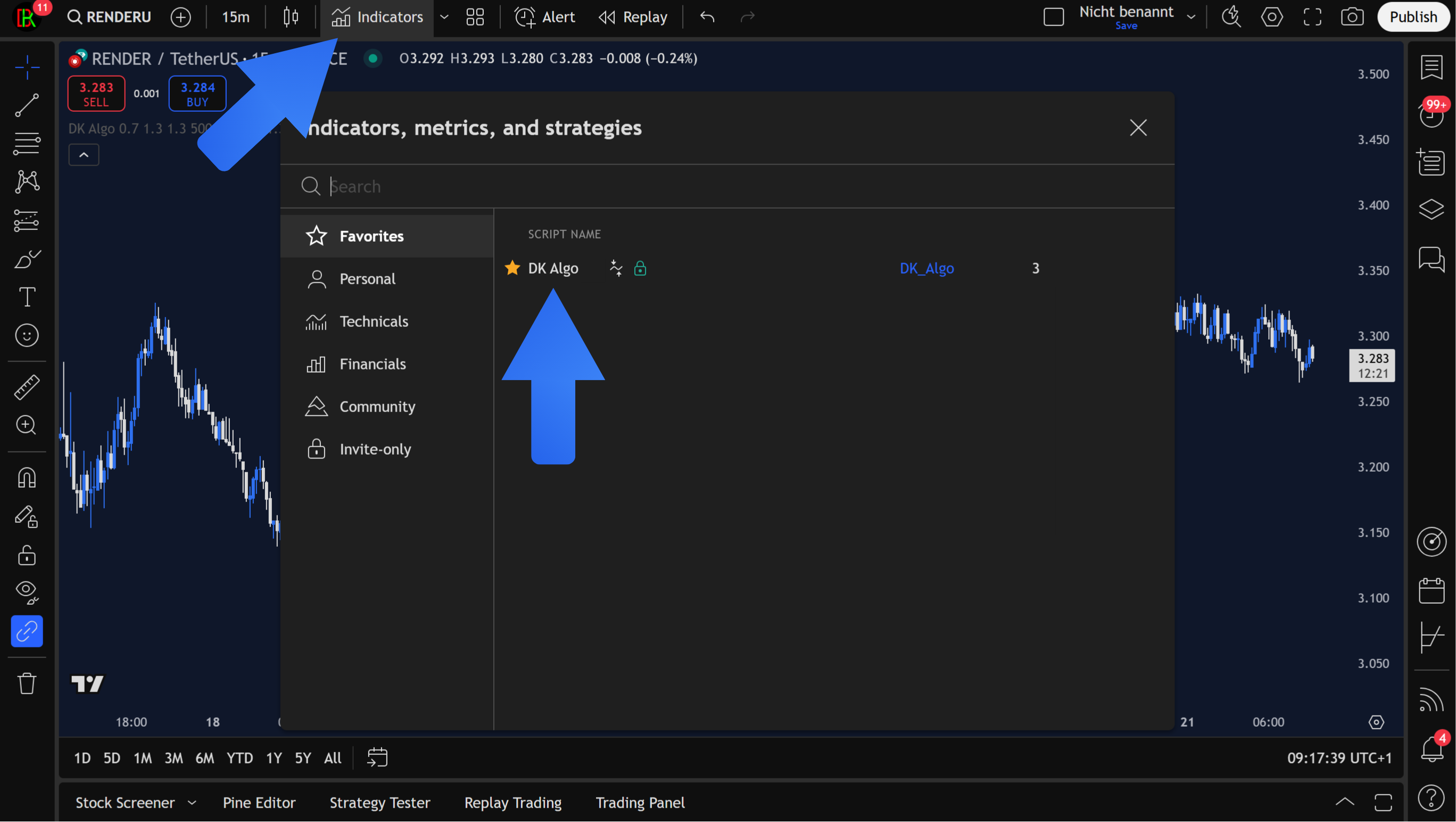
DK Algo is a TradingView strategy script. You add it from the Indicators menu (TradingView groups strategies there):
- Log in to your TradingView account and open any chart (currencies, cryptocurrencies, or stocks)
- Click on the Indicators button at the top of the chart
- If you've favourited DK Algo, find it in your Favourite Indicators section
- If not favourited, click on the Invite-only scripts tab and select DK Algo
Understanding Strategy Signals
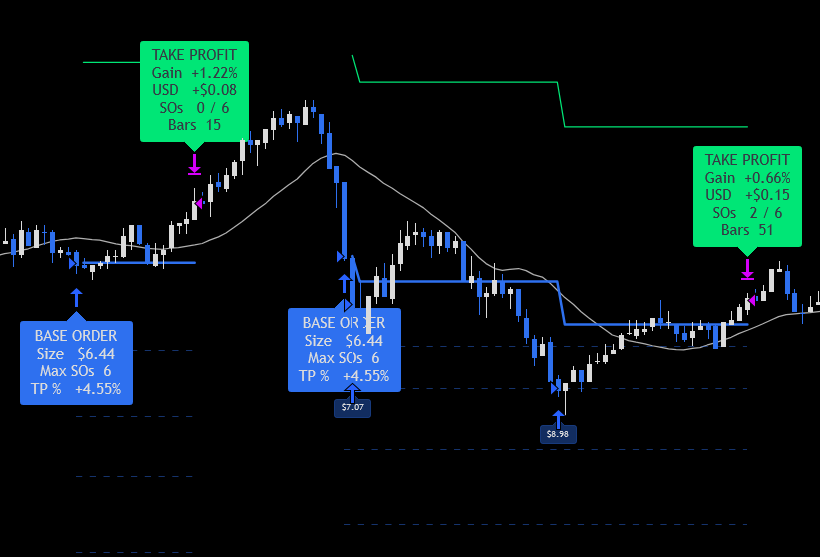
DK Algo uses chart lines and callout labels to show how each trade is managed.
- Average Price The solid blue line tracks your weighted average entry while a trade is open. It updates as safety orders fill.
- Safety Order Levels Dashed blue lines below average price show where the next safety orders will trigger if price keeps falling. Filled levels stop extending; pending ones stay visible ahead of price.
- Base Order Marks where the buy level was hit. Blue callout labels appear at each new entry with order size, max safety orders, and take-profit percentage.
- Take Profit Marks where the sell level or take-profit target was hit. The solid green line shows the target above average entry (based on your Take Profit %). Green TAKE PROFIT callouts summarize gain %, USD P&L, safety orders used, and bars in the trade; unprofitable exits show EXIT instead.
Configuration
General Settings
The default configuration settings are optimized for moderately volatile markets:
- Sell Signal Factor: Default is 1. Increasing this value requires stronger market movements for signals, resulting in fewer but more reliable signals.
- Buy Signal Factor: Default is 1. Similar to the Sell Signal Factor, higher values increase signal accuracy but reduce frequency.
The default settings serve as an effective starting point. Fine-tune these parameters based on your trading style and the specific market conditions.
Safety Order Strategy
This powerful feature helps improve your trade entries and exits during temporary price reversals:
- Safety Order Backtesting: Enabled by default
- Dynamic Exit: Enabled by default (positions close automatically based on Sell Signal Factor)
- Take Profit: Default set at 1.3%
- Base Order Size: Customizable based on your trading capital
- Safety Order Size: Customizable according to your risk management preferences
- Price Deviation for First Safety Order: Default set at 1%
- Volume Scale: Default multiplier of 1.35 (each subsequent safety order size increases)
- Step Scale: Default multiplier of 1.3 (spacing between safety orders)
- Safety Trades Count: Default is 6
Adjust these settings based on your risk tolerance and trading goals. Higher safety order counts provide better averaging but require more capital.
Risk Management
Carefully manage potential losses with built-in risk management:
- Stop Loss: Optional and disabled by default
- Stop Loss Percentage: Disabled by default; set this percentage according to your risk tolerance if enabled
Always use appropriate risk management and never risk more than you can afford to lose when trading.
Finding The Best Settings: Backtesting
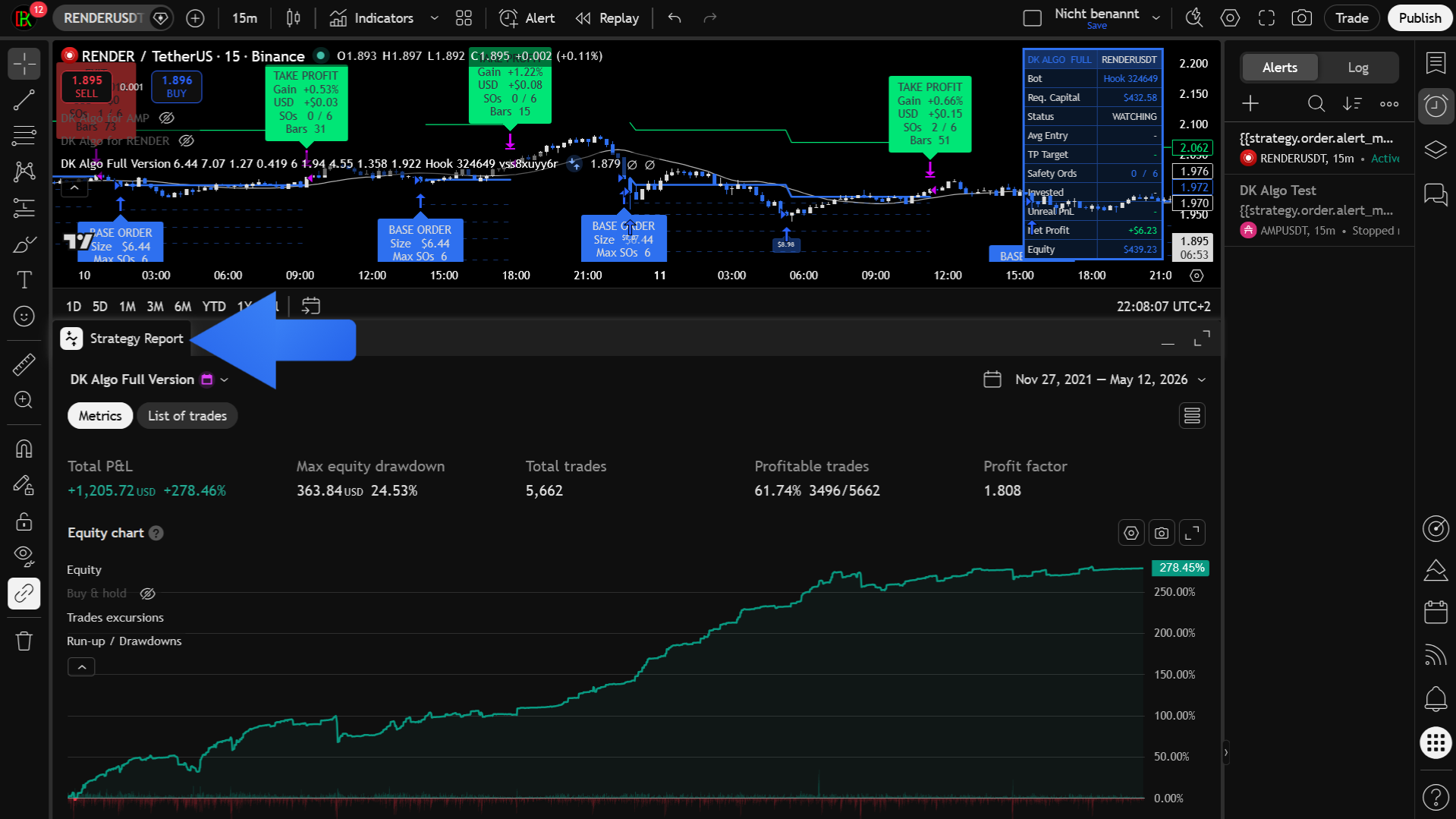
Backtesting allows you to evaluate how your settings would have performed historically:
- Click the Strategy Tester button at the bottom of your TradingView chart
- Adjust parameter values to identify settings that maximize historical profitability
Ensure your TradingView Strategy Properties Initial Capital is equal to or greater than the maximum capital required by your safety order settings. Parameters such as Volume Scale and Safety Trades Count change how much capital a full DCA sequence needs. If Initial Capital is too low, the Strategy Tester skips deeper safety orders with insufficient funds and your backtest results will look better than what live trading can support.
Automation
Create the Finandy Signal Connection
Finandy receives DK Algo strategy orders from TradingView and sends them to your connected wallet or exchange account. Start from your Finandy terminal and open the signal setup screen.
- Arrow 1: Opens the signal setup viewport.
- Arrow 2: Creates a new signal connection with the Connect New Signal button.
- Arrow 3: Marks the source dropdown. Set it to Strategy (DK Algo is a Pine Script strategy; an indicator source will not receive {{strategy.order.alert_message}} payloads).
- Arrow 4: Copies the Finandy webhook URL you will paste into TradingView.
- Arrow 5: Shows where to view or copy the secret key.
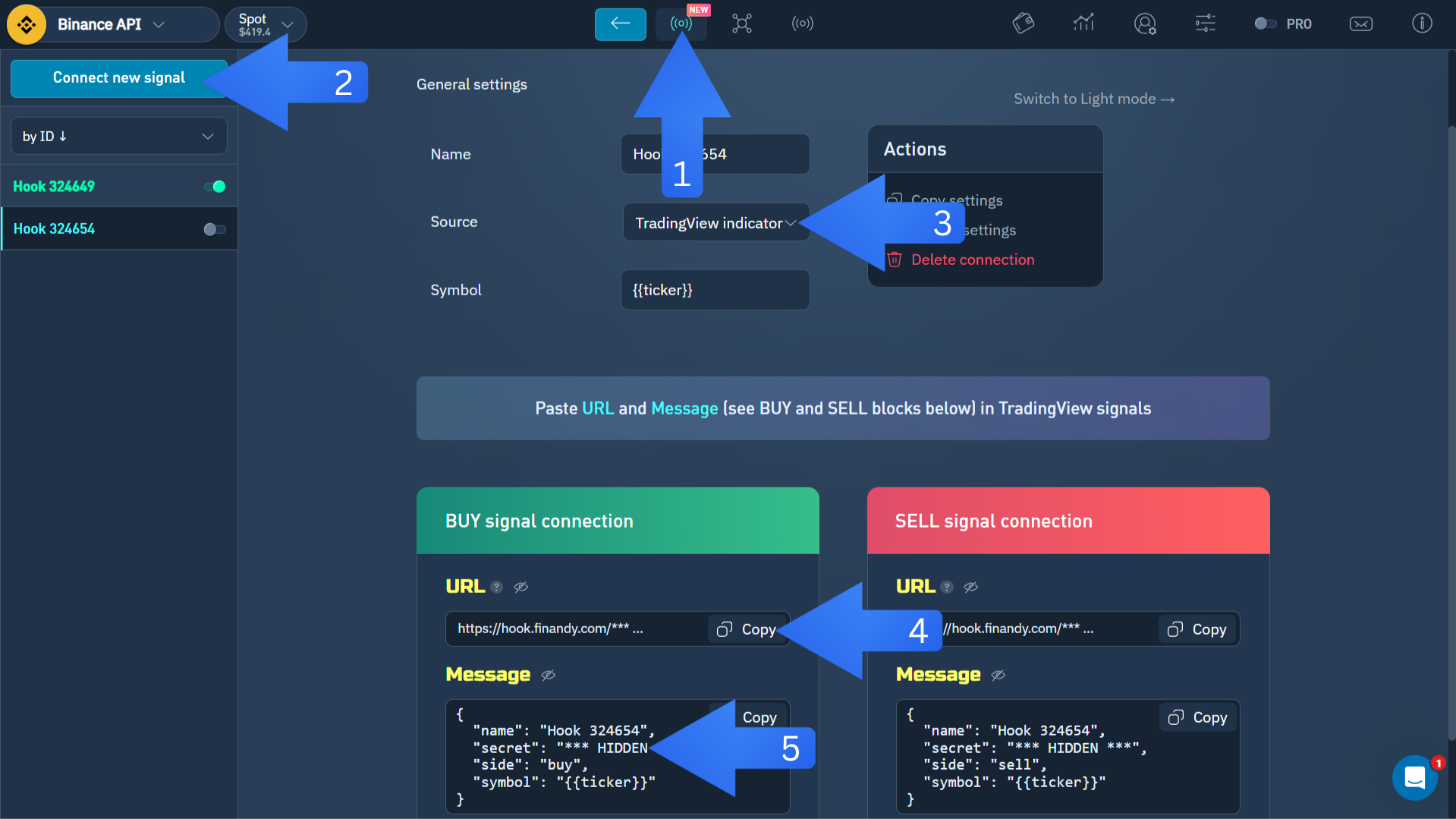
Keep the secret key private. Anyone with the webhook URL and secret can send orders to the connected Finandy signal.
Configure Open and Average Position in Finandy
In your Finandy signal settings under Action by signal, match the three numbered arrows in the screenshot:
- Arrow 1: Turn on Average position.
- Arrow 2: For both Open position and Average position, enable the take from webhook checkbox next to Amount (green signal icon).
- Arrow 3: Set the quantity type dropdown to Amount for both Open position and Average position.
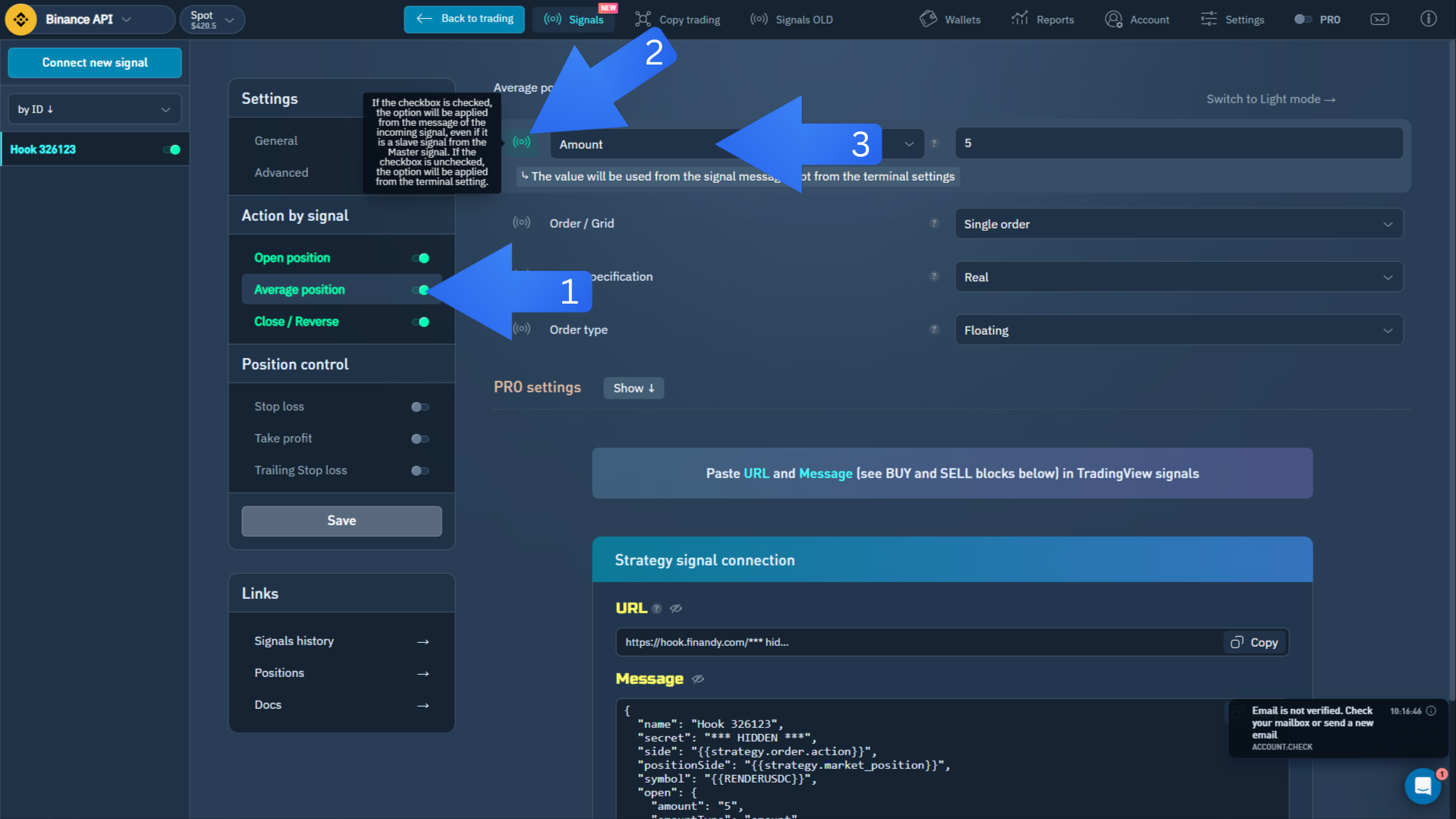
With these settings, DK Algo sends order sizes from each strategy fill. You do not need to recreate the DCA logic manually in Finandy.
Add the Finandy Details to DK Algo
Open the DK Algo strategy settings in TradingView (gear icon on the chart) and find Finandy Webhook Settings. Fill the fields with the details from Finandy:
- Bot Name: the Finandy hook name, such as Hook 324649
- Secret Key: the secret key shown in Finandy
- Custom Trade Pair: optional, for example AMPUSDC when the chart pair differs from the pair you want Finandy to trade
Configure the TradingView Strategy Alert
DK Algo is a Pine Script strategy. You need a strategy alert so TradingView sends live order data through {{strategy.order.alert_message}}. A standard indicator alert will only send plain text and will not execute trades in Finandy.
TradingView keeps Settings (condition and message) and Notifications (webhook URL) in the same alert popup. Configure both before you click Create. If you save too early, open the alert from your Alerts list and edit it.
A. Open the alert editor
- Open your TradingView chart with the DK Algo strategy loaded.
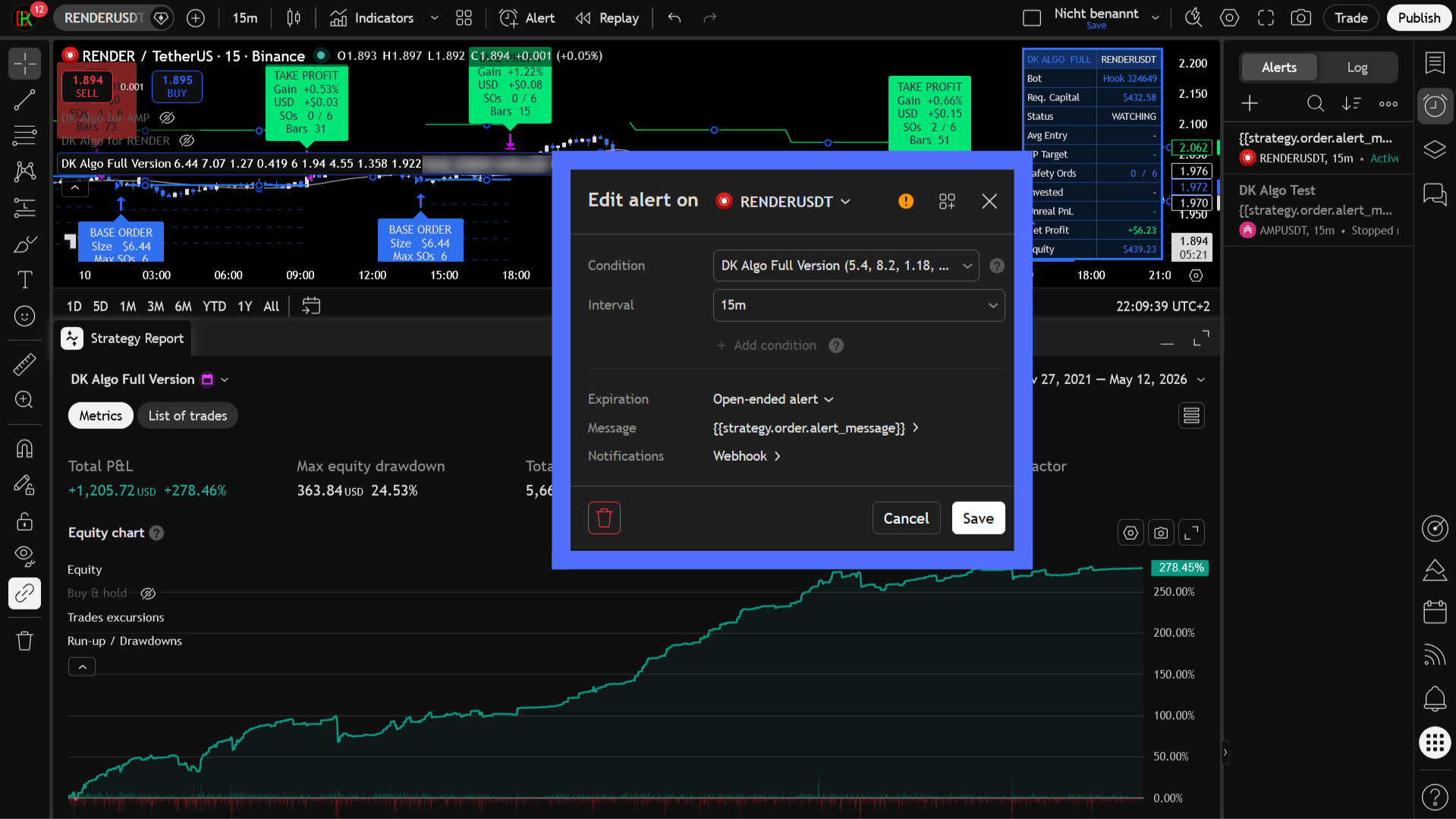
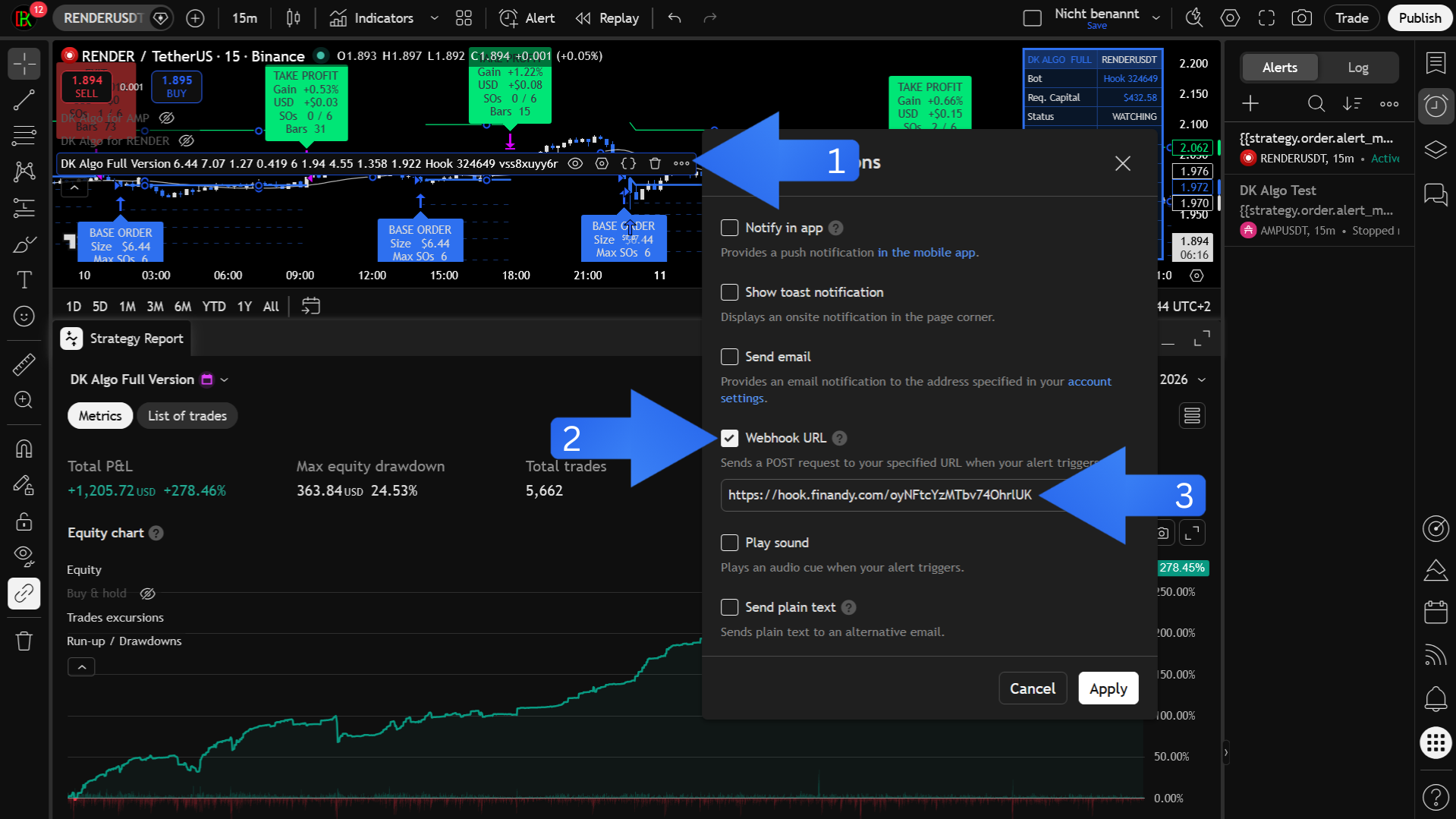
- Arrow 1: Click the ⋯ menu on the DK Algo strategy name in the chart legend and choose Add alert on…. You can also use Create Alert in the Strategy Tester panel.
B. Settings tab
- Confirm the chart symbol.
- Set Interval to Same as chart.
- Set the condition to the DK Algo strategy (not a separate indicator study).
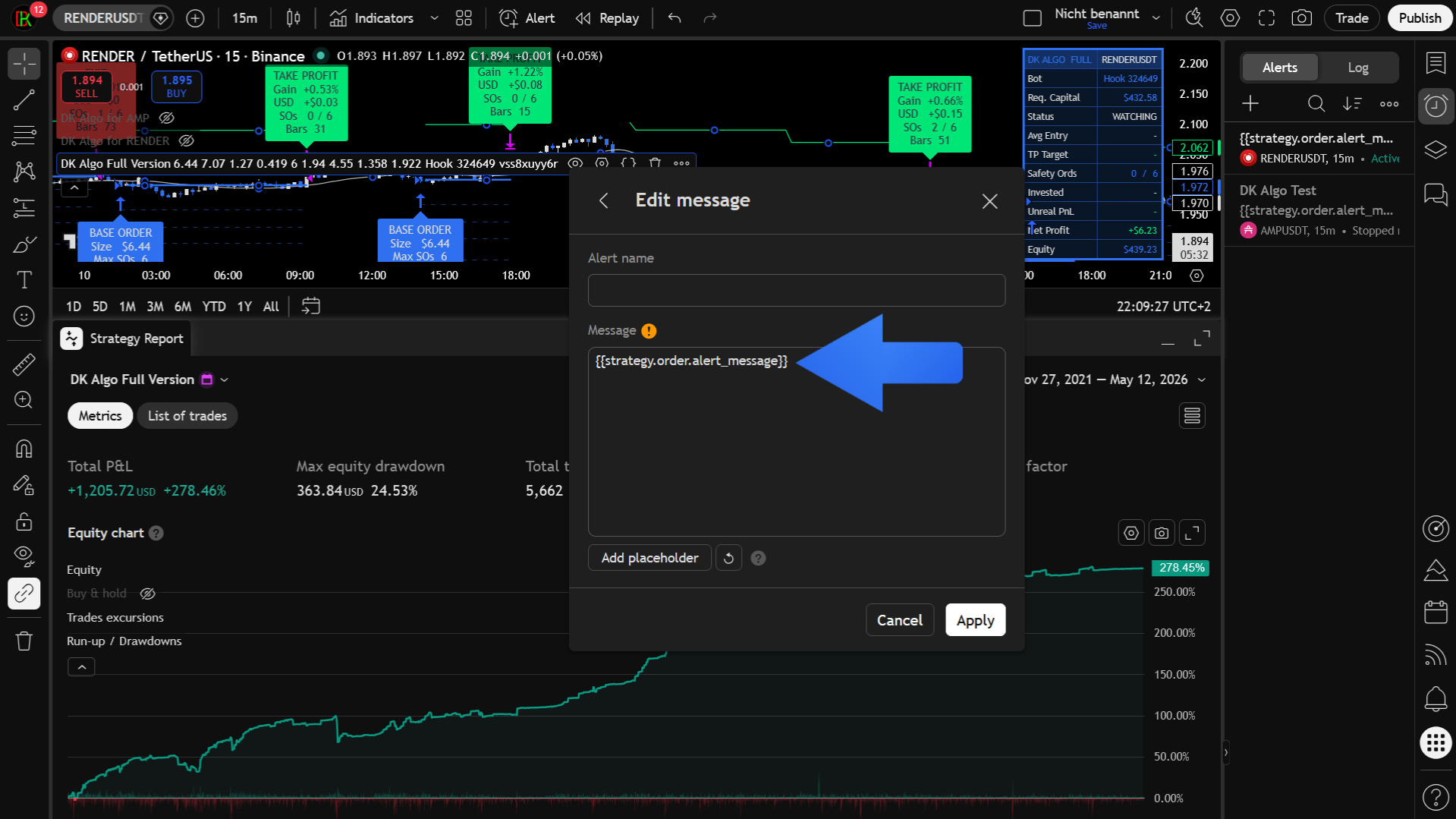
- Open Message and replace the default text with {{strategy.order.alert_message}}.
C. Notifications tab
Stay in the same popup. Open Notifications → Webhook to reach Alert actions:
- Arrow 2: Check Webhook URL to enable webhook delivery.
- Arrow 3: Paste the Finandy webhook URL from Automation step 1, then click Apply.
Click Create only after sections A through C are complete. Confirm the alert appears in your Alerts list.
Start with small order sizes and monitor the first trades. Before live execution, verify the pair mapping, required capital, order size, and connected wallet or exchange account.